
iLoader iOS Download and Install Guide

iLoader IPA Sideloading Tool (iOS 27 – 26)
Install SideStore. Load IPA Files. No Jailbreak.
iLoader App is a free, open-source iOS sideloading companion for iPhone and iPad users. It helps you install SideStore, import IPA files, manage pairing files, view certificates and App IDs, check logs, and fix common sideloading setup issues from Windows, macOS, or Linux.
If your goal is to install SideStore, set up a no-jailbreak IPA workflow, or understand why iLoader is not detecting your iPhone, this guide gives you the clean path. Start with the official iLoader download source, choose the right build for your computer, then follow the setup steps carefully.
iLoader is not a jailbreak tool. It is not an App Store replacement. It is a helper app for sideloading workflows, especially SideStore setup and IPA installation. Use it only with apps you own, apps you are allowed to test, developer builds, or trusted IPA files.
iLoader App at a Glance
| Item | Detail |
| Tool name | iLoader App |
| Main use | iOS sideloading companion |
| Best for | Installing SideStore and IPA apps |
| Platforms | Windows, macOS, Linux |
| Jailbreak required | No |
| Cost | Free |
| Source type | Open-source |
| Main CTA | Download iLoader |
| Support CTA | Fix iLoader issues |
iLoader is useful because it brings several sideloading tasks into one place. Instead of jumping between tools, settings, pairing files, and logs, you can use iLoader as a cleaner setup helper for SideStore and IPA installation.
The main reason most users search for iLoader is simple: they want an easier way to install SideStore or sideload IPA files on iPhone without jailbreak. That is the strongest use case for this tool.
iLoader Summary
iLoader is a free, open-source iOS sideloading companion for Windows, macOS, and Linux. It helps users install SideStore, import IPA files, manage pairing files, view certificates and App IDs, and troubleshoot common sideloading errors.
What Is iLoader?
iLoader App Explained
iLoader is a desktop tool used with iPhone and iPad. It is not an iPhone app from the App Store. You install iLoader on your computer, connect your iPhone or iPad, and use it to help with SideStore setup, IPA import, pairing files, certificates, App IDs, and logs.
Think of iLoader as a setup companion. It helps bridge the gap between your computer and your iOS device during sideloading. For users who are new to SideStore, pairing files, or IPA installation, iLoader can make the process easier to understand.
iLoader can help with:
- installing and setting up SideStore
- importing IPA files
- connecting iPhone or iPad by USB or wireless methods
- managing RPPairing and Lockdown pairing files
- checking development certificates
- viewing App IDs
- exporting logs for troubleshooting
- fixing common sideloading setup errors
Who Should Use iLoader?
iLoader is a good fit for users who want a cleaner no-jailbreak sideloading setup.
Use iLoader if you are:
- installing SideStore for the first time
- setting up an iPhone or iPad sideloading workflow
- importing IPA files you own or are allowed to test
- using Windows for SideStore setup
- using macOS and want an iLoader workflow
- using Linux and need IPA sideloading support
- trying to fix device detection or pairing file errors
- checking certificates or App IDs during sideloading
iLoader is especially useful for users who want to install SideStore but feel confused by pairing files, certificates, or setup steps.
What iLoader Is Not
This part matters for safety and trust.
iLoader is not:
- an App Store replacement
- a jailbreak tool
- a premium IPA store
- a certificate-selling service
- a tool for bypassing app ownership
- a source for unsafe or unauthorized IPA files
- a promise that every IPA will work on every iPhone
Do not trust pages that claim iLoader includes paid apps, premium certificates, or guaranteed working IPA files. iLoader should be used as a setup and sideloading companion, not as a shortcut around app safety or permissions.
Official iLoader Download
Only use official iLoader sources. The official iLoader project states that iLoader is officially distributed through the official iLoader website and GitHub repository only. It also warns users not to download iLoader from other sources or sites selling iLoader services.
This is important because sideloading tools often attract fake mirrors, copied download buttons, and pages that mix real tools with unsafe files. If you want the cleanest setup, start from the official source.
iLoader for Windows, macOS, and Linux
iLoader supports Windows, macOS, and Linux, which makes it useful for many iPhone and iPad users in the United States. The right build depends on your computer.
👉 iLoader Download for Windows
Windows users can download iLoader using the Windows builds, such as MSI or EXE installers. This is the best option for most users who want a normal Windows setup flow.
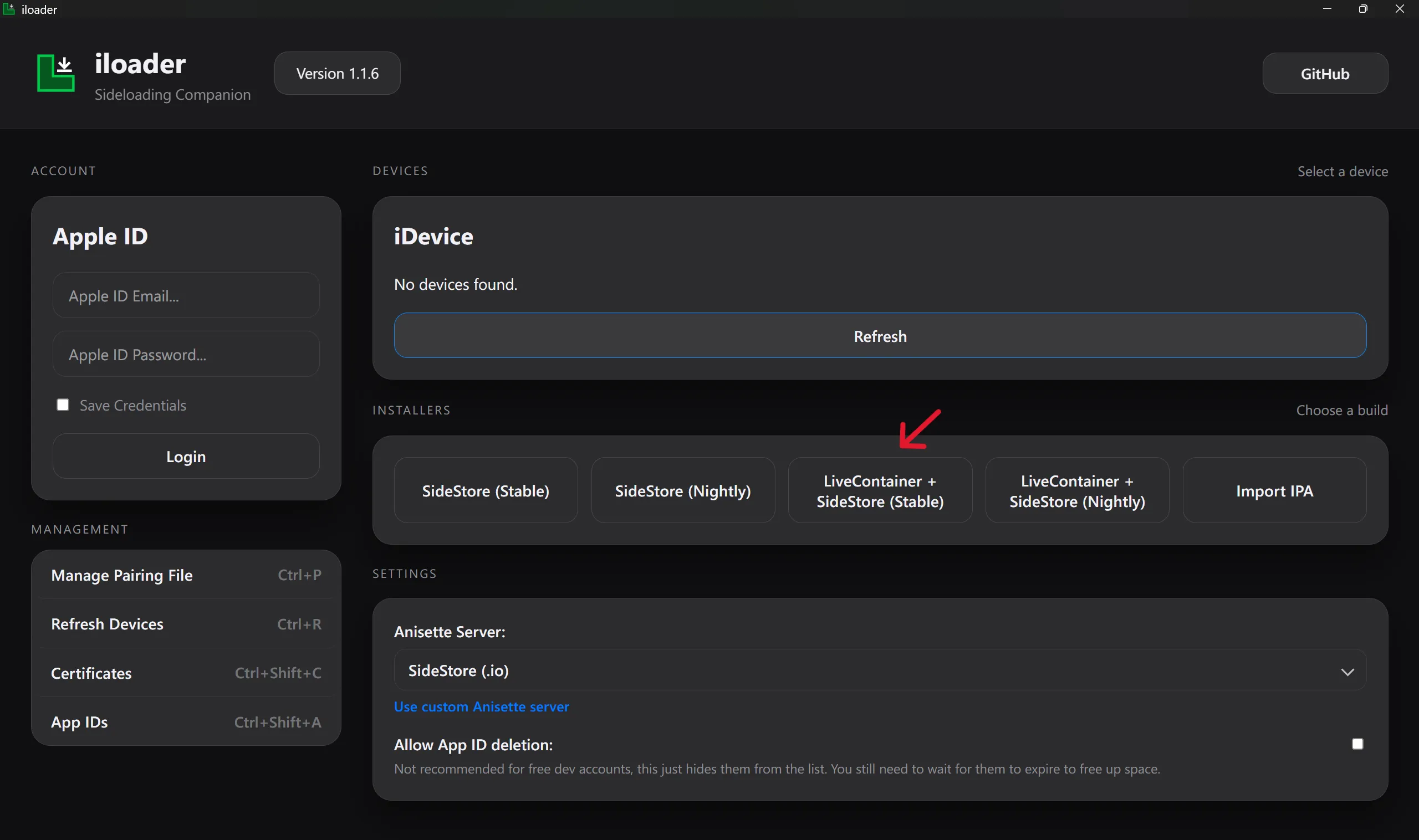
Before starting on Windows, check these points:
- Use the official iLoader download source or the above download button
- Install iTunes if required
- Use a working USB cable
- Unlock your iPhone
- Tap Trust This Computer when prompted
- Reopen iLoader after connecting your device
Windows device detection issues often come from USB trust, drivers, iTunes components, or cable problems. If iLoader is not detecting your iPhone, start with those basics before changing everything else.
👉 iLoader Download for macOS (iLoader Mac)
Mac users can use the macOS iLoader build, app bundle, DMG installer, or Homebrew option where available.
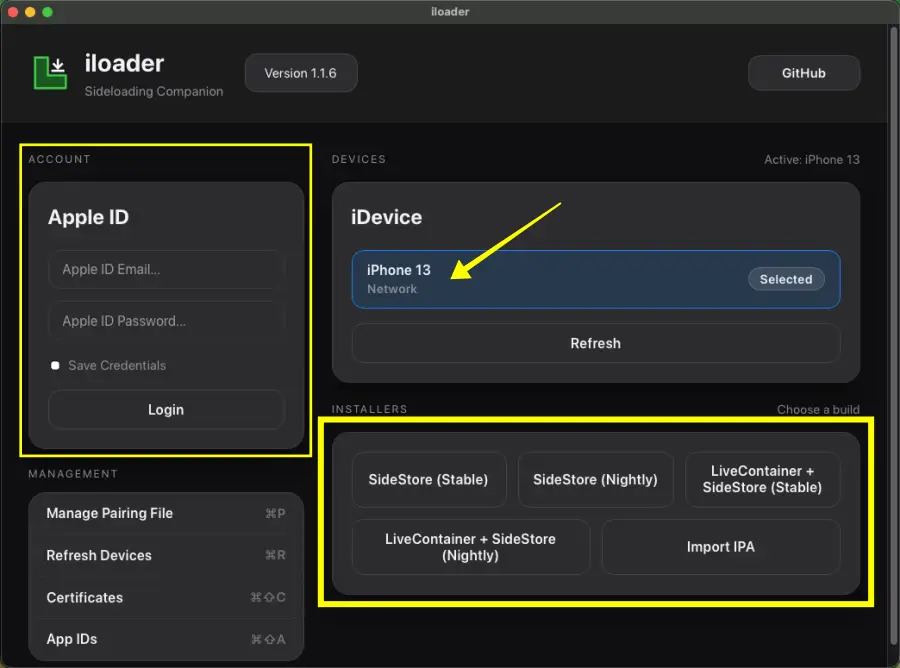
macOS is often cleaner for iOS device communication, but you should still check:
- iPhone is unlocked
- USB cable is stable
- device is trusted
- iLoader has permission to run
- macOS security prompts are accepted if shown
Homebrew users can install iLoader through the Homebrew cask method if they prefer terminal-based installation.
👉 iLoader Download for Linux (iLoader Linux)
Linux users can use Linux builds such as Debian/Ubuntu .deb, Fedora/RedHat .rpm, or AppImage. Some Linux setups may require usbmuxd or related device communication tools.
Linux is a strong option for advanced users, but setup can be more technical than with Windows or macOS.
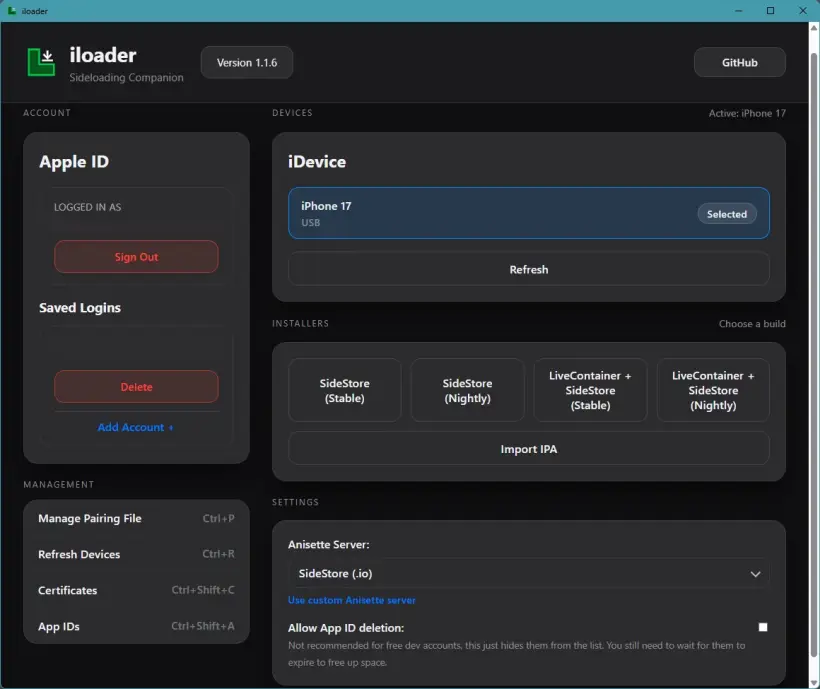
Before using iLoader on Linux, check:
- your distribution type
- whether you need .deb, .rpm, or AppImage
- USB permissions
- usbmuxd availability
- device trust prompts
- ARM or x86_64 build support
iLoader Download Builds
| Platform | Build Type | Best For | Notes |
| Windows | MSI / EXE | Most Windows users | iTunes may be required |
| macOS | DMG / App Bundle / Homebrew | Mac users | Good for a cleaner desktop workflow |
| Linux | DEB / RPM / AppImage | Linux users | usbmuxd may be needed |
| Linux ARM | GitHub release builds | ARM Linux devices | Use official releases only |
iLoader Features
iLoader is useful because it handles more than one sideloading task. Its strongest value is SideStore setup, but it also supports IPA import, pairing files, certificates, App IDs, logs, and device connections.
👉 Install SideStore Automatically
One of iLoader’s biggest features is helping users install and set up SideStore. This is the main reason many iPhone users search for iLoader SideStore or SideStore iLoader guide.
SideStore can be confusing for beginners because it involves pairing files, setup steps, and device trust. iLoader helps simplify part of that process.
Use this feature if your goal is:
- install SideStore on iPhone
- start a no-jailbreak sideloading setup
- avoid manual setup confusion
- prepare your device for IPA installation through SideStore
👉Install IPA Files
iLoader can import and install IPA applications. Use this only with apps you own, developer builds, personal apps, or IPA files you are allowed to test.
Do not download random IPA files from unknown sites. Unsafe IPA files can fail to install, crash after opening, trigger signing problems, or create privacy risks.
iLoader is a tool. The safety of an IPA file depends on the source and what the file contains.
👉 Manage Pairing Files
Pairing files help your computer and iPhone communicate during sideloading workflows. iLoader can help manage RPPairing files and Lockdown pairing files.
These files matter because SideStore and related workflows may rely on pairing data to refresh apps, connect properly, or complete setup.
Do not delete pairing files unless you know what you are doing. If pairing files are wrong, missing, or mismatched, SideStore setup may fail.
👉 Manage Certificates and App IDs
iLoader can show and manage development certificates and App IDs. This is helpful because many sideloading problems are connected to signing, certificates, app limits, or Apple ID restrictions.
This feature can help users understand:
- Which certificates are active
- Why an install may fail
- Why does an App ID limit appear
- Why does an app need to be signed again
- Why a certificate may need to be refreshed
👉 View and Export Logs
Logs are useful when something fails. Instead of guessing why iLoader did not install SideStore or why an IPA failed, logs can show error details.
Export logs when:
- iLoader does not detect your iPhone
- SideStore setup fails
- Apple ID login fails
- IPA install fails
- certificate errors appear
- the app shows unknown errors
👉 USB and Wireless Device Connection
iLoader supports device connection through USB and wireless methods. For first setup, USB is usually easier because it removes Wi-Fi uncertainty.
Use USB first if you are new. Use wireless only after the device is trusted and the setup is working.
👉 iLoader Feature Table
| Feature | What It Does | Why Users Care |
| SideStore setup | Helps install SideStore | Main use case |
| IPA import | Adds IPA files | Sideloading workflow |
| Pairing files | Handles pairing data | Needed for refresh/setup |
| Certificates | Shows development certificates | Helps fix signing issues |
| App IDs | Shows app identifiers | Helps understand limits |
| Logs | Shows setup errors | Useful for troubleshooting |
| USB/Wireless | Connects device | More setup flexibility |
How to Install SideStore with iLoader
Installing SideStore with iLoader is one of the most important uses for this tool. If you are new to sideloading, follow the steps slowly and avoid skipping trust prompts.
👉 Before You Start
Prepare these first:
- Windows, macOS, or Linux computer
- iPhone or iPad
- Apple ID
- USB cable
- official iLoader download
- enough device storage
- stable internet connection
- basic backup of your important data
Also avoid unsafe IPA files during setup. Get SideStore working first before adding extra apps.
👉 Install SideStore with iLoader — Basic Steps
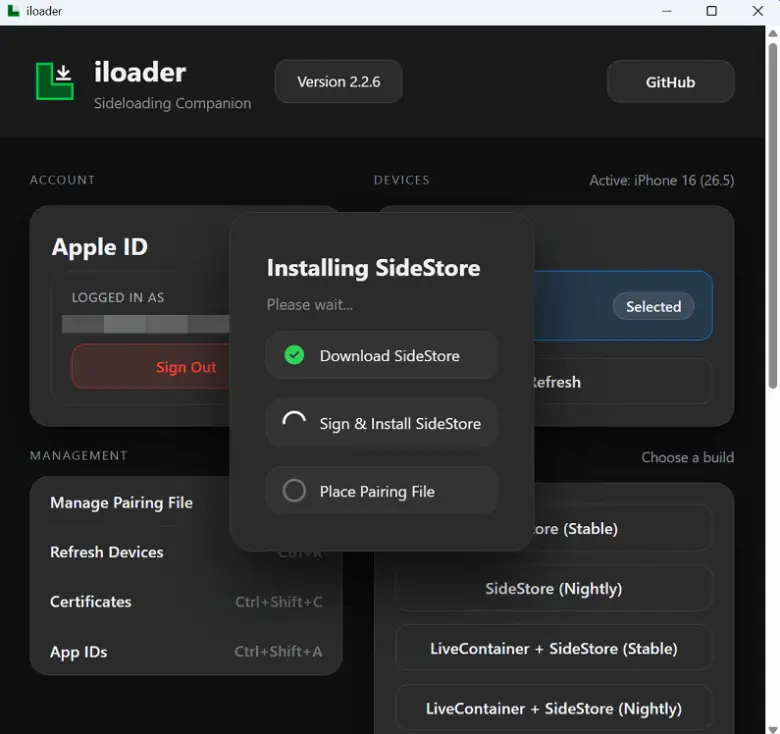
- Download iLoader from an official source.
- Install iLoader on Windows, macOS, or Linux.
- Connect your iPhone or iPad to the computer.
- Unlock your device.
- Tap Trust This Computer if the prompt appears.
- Open iLoader.
- Choose the SideStore setup option.
- Sign in with your Apple ID when required.
- Import or generate pairing files if iLoader asks for them.
- Complete the SideStore install.
- Open SideStore on your iPhone or iPad.
- Finish the on-device setup.
If a step fails, do not keep clicking random buttons. Check the error, reconnect your iPhone, restart iLoader, and review the troubleshooting section below.
👉 What to Do After Installing SideStore
After SideStore is installed:
- Open SideStore on your device
- Confirm it launches correctly
- Check refresh setup
- keep pairing files safe
- test with a simple app before adding more
- Confirm Wi-Fi or VPN requirements if your setup needs them
- Do not delete iLoader until the setup is stable
SideStore works best when the initial setup is clean. If you change too many settings before testing, it becomes harder to know what caused an issue.
How to Install IPA Files with iLoader
iLoader can work as an IPA installer helper, but use it responsibly. The best use cases are developer builds, apps you own, personal projects, and IPA files you are allowed to test.
Safe IPA Use First
Before installing any IPA file, check:
- Do you trust the source?
- Do you own or have permission to test the app?
- Is the file compatible with your iOS version?
- Is the IPA file recent enough?
- Does the app require special entitlements?
- Are you avoiding fake “premium unlocked” claims?
Do not trust IPA files only because a site says they are “safe” or “unlocked.” Use clean sources and avoid files with unclear origin.
Basic IPA Install Steps
- Download iLoader from an official source.
- Connect your iPhone or iPad.
- Open iLoader.
- Import the IPA file.
- Sign with your Apple ID or configured account.
- Install the app.
- Trust or verify the app if required.
- Open the app and test it.
If the app does not install, the issue may be the IPA file, certificate, Apple ID, iOS version, or device connection.
What Can Go Wrong?
Common IPA install issues include:
- signing failed
- certificate revoked
- app expires
- iLoader not detecting iPhone
- incompatible IPA
- Apple ID sign-in issue
- App ID limit reached
- app crashes after install
- unable to verify app
Start with the simplest fix: reconnect the device, restart iLoader, check the IPA file, and confirm your Apple ID or certificate status.
iLoader vs Sideloadly vs SideStore vs AltStore
Users often compare iLoader with other sideloading tools. The key is to understand that these tools do not all do the same job.
iLoader is mainly a companion tool for SideStore setup, pairing files, certificates, App IDs, IPA import, and troubleshooting.
SideStore is an alternative app store for sideloading that can install IPA apps after initial setup.
Sideloadly is a direct computer-based IPA sideloading tool with broad device support.
AltStore is a classic sideloading setup that many users already know.
iOS Sideloading Comparison
| Tool | Best For | Computer Needed | Main Strength | Weakness |
| iLoader | Setting up SideStore and managing IPA setup tasks | Yes | SideStore setup, pairing files, certificates, logs | Less known than Sideloadly or AltStore |
| SideStore | Installing IPA apps after setup | Initial setup only | No computer after initial setup | Setup can be confusing |
| Sideloadly | Direct IPA sideloading from computer | Yes | Broad platform support and direct IPA install | More manual workflow |
| AltStore | Classic sideload setup | Initial setup/computer support | Popular and familiar | Refresh and setup friction for beginners |
When to Use iLoader
Use iLoader if:
- Your goal is to install SideStore
- You need pairing file help
- You want certificate or App ID visibility
- You want logs for troubleshooting
- You want a helper tool for sideloading setup
- You use Windows, macOS, or Linux
iLoader is a strong choice when you want a structured SideStore setup path.
When to Use Sideloadly
Use Sideloadly if:
- You want direct drag-and-drop IPA installation
- You prefer computer-based sideloading
- You want broad device support
- You need a familiar IPA install workflow
Sideloadly is better for users who want direct computer-to-device IPA installs.
When to Use SideStore
Use SideStore if:
- You want to install IPA files from your device later
- You want a sideloading workflow after initial setup
- You do not want to connect to a computer every time
- You already completed the initial setup
SideStore becomes more useful after the first setup is complete.
When to Use AltStore
Use AltStore if:
- You want a long-known sideloading method
- You prefer a more familiar setup
- You do not need iLoader-specific pairing file help
- You already understand app refresh limits
AltStore is popular, but iLoader may be better when your goal is SideStore setup.
Common iLoader Problems and Fixes
iLoader setup problems are usually caused by device trust, Apple ID login, pairing files, certificates, App IDs, or incompatible IPA files. Start with the exact error before reinstalling everything.
iLoader Problems and Quick Fixes
| Problem | Likely Cause | Quick Fix |
| iLoader not detecting iPhone | Trust, iTunes, USB, or driver issue | Reconnect cable, trust computer, reinstall drivers or iTunes |
| Apple ID login failed | Wrong credentials, 2FA, or server issue | Check Apple ID, enter 2FA, retry later |
| Pairing file error | Missing or wrong pairing file | Recreate or reimport pairing file |
| Certificate revoked | Signing certificate issue | Revoke old certificate and sign again |
| App ID limit reached | Free Apple ID limit | Remove unused App IDs or wait |
| IPA install failed | Bad IPA or signing issue | Try another IPA or check compatibility |
| App expires | Free account refresh cycle | Refresh app before expiry |
| SideStore not opening | Setup incomplete | Reinstall or check pairing/config |
| Logs show unknown error | Tool/device mismatch | Export logs and check known issues |
iLoader Device Not Detected
If iLoader is not detecting your iPhone:
- Unlock your iPhone.
- Reconnect the USB cable.
- Use a different USB port.
- Tap Trust This Computer on the iPhone.
- Restart iLoader.
- Restart the computer.
- Check iTunes or device drivers on Windows.
- Try another cable if nothing works.
Most detection issues are caused by trust, cable, or driver problems.
iLoader Apple ID Login Failed
If Apple ID login fails:
- Confirm the Apple ID is correct
- Check your password
- approve 2FA
- avoid repeated rapid attempts
- wait and try again if Apple servers reject the login
- Check whether your account has restrictions
Do not enter your Apple ID on random third-party pages. Only use trusted tools and official sources.
iLoader 2FA Not Working
If 2FA is not working:
- Wait for the code.
- Check trusted devices.
- Request a new code.
- Confirm the correct Apple ID.
- Restart iLoader.
- Try again later if Apple verification is delayed.
2FA problems are usually temporary or account-related.
iLoader Pairing File Error
Pairing file errors happen when iLoader cannot find, read, or use the correct pairing file.
Try this:
- Recreate the pairing file
- Reimport the file
- Make sure it belongs to the same device
- Avoid moving the file after setup
- Repeat the initial trust step
- Check SideStore setup instructions again
Pairing files are important for SideStore workflows. Keep them safe.
iLoader Certificate Revoked
A certificate revoked error usually means the signing certificate is no longer valid.
Try:
- revoke the old certificate if needed
- sign the app again
- check Apple ID limits
- confirm app compatibility
- reinstall the app after signing
If the same error returns, check whether the certificate or account is being blocked by the setup.
iLoader App IDs Limit
Free Apple IDs have limits. If the App ID limit is reached, you may not be able to sign more apps immediately.
Try:
- remove unused App IDs if possible
- wait for limits to reset
- install fewer apps
- avoid duplicate bundle IDs
- use one test app first
This is normal in free Apple ID sideloading workflows.
IPA Install Failed
If an IPA install fails:
- check if the IPA is compatible
- try a different IPA file
- check certificate status
- confirm Apple ID login
- reconnect the device
- restart iLoader
- read the logs
Do not assume every IPA file is valid. Some files are outdated, damaged, or built for different iOS versions.
SideStore Setup Failed
If SideStore setup fails:
- Restart iLoader.
- Reconnect your iPhone.
- Recheck pairing files.
- Confirm Apple ID login.
- Reinstall SideStore.
- Keep your device unlocked during setup.
- Check logs for the exact error.
SideStore setup often fails when a required pairing or signing step is incomplete.
Is iLoader Safe?
iLoader is safest when downloaded from official sources and used for normal sideloading tasks. It is free and open-source, and the official project warns users not to download it from unofficial sites or pay for iLoader services.
Safety depends on two things:
- where you download iLoader
- what IPA files you install with it
iLoader itself is a tool. It does not make unknown IPA files safe. Always check the source of the IPA file before installing.
Safe Use Checklist
Before using iLoader:
- download only from official sources
- avoid mirror sites
- avoid paid certificate sellers pretending to be iLoader
- use apps you own or are allowed to test
- avoid unknown IPA files
- do not trust fake premium app claims
- keep pairing files private
- review logs if something fails
- use a backup before major setup changes
Apple ID Safety Note
Some sideloading workflows require Apple ID login. Use a trusted setup path and avoid entering account details into unknown websites or copied tools.
For extra caution, some users prefer using a separate Apple ID for sideloading. This can reduce risk to a main Apple account.
Trusted IPA File Note
Use trusted IPA files only. Random IPA files can create install errors, app crashes, privacy risks, or certificate problems.
A clean setup is better than installing many files from unknown sources.
Related iOS Tools and Guides
Use these TweakedStore pages as natural next steps:
- IPA Library — browse iPhone and iPad IPA apps
- SideStore Guide — learn SideStore setup and install flow
- Sideloadly Guide — direct IPA installation from computer
- AltStore Guide — classic sideloading setup
- Feather Guide — another iOS install tool option
- Jailbreak Finder — check jailbreak-related options
- Trending Apps — explore popular iOS app pages
- iOS 27 Compatibility Checker — check device support before major updates
- App Install Help — fix install, crash, and setup issues
Use internal links naturally from the page sections. Do not place all links only at the bottom.
iLoader iOS FAQ
1. What is the iLoader App?
iLoader App is a free, open-source iOS sideloading companion for Windows, macOS, and Linux. It helps users install SideStore, import IPA files, manage pairing files, view certificates and App IDs, and troubleshoot setup errors.
2. Is iLoader free?
Yes. iLoader is free and open-source. Avoid sites that sell iLoader or claim to bundle paid services with it.
3. Is iLoader open-source?
Yes. iLoader is open-source and maintained through its official project sources.
4. Is iLoader safe?
iLoader is safest when downloaded only from official sources and used with trusted IPA files. Avoid unofficial mirrors and unsafe IPA downloads.
5. Where do I download iLoader?
Download iLoader from official sources only. Use the official iLoader website or the official GitHub repository.
6. Does iLoader work on Windows?
Yes. iLoader supports Windows builds such as MSI and EXE installers. Windows users may need iTunes components for device communication.
7. Does iLoader work on macOS?
Yes. iLoader supports macOS through options such as DMG, app bundle, and Homebrew where available.
8. Does iLoader work on Linux?
Yes. iLoader supports Linux with builds such as .deb, .rpm, AppImage, and Linux ARM releases.
9. Can iLoader install SideStore?
Yes. Installing and setting up SideStore is one of iLoader’s main use cases.
10. Can iLoader install IPA files?
Yes. iLoader can import and install IPA files. Use only trusted IPA files you own or are allowed to test.
11. Does iLoader require jailbreak?
No. iLoader is used for no-jailbreak sideloading workflows.
12. What is a pairing file in iLoader?
A pairing file helps your computer and iPhone communicate during sideloading workflows. It is important for SideStore setup and refresh behavior.
13. Why is iLoader not detecting my iPhone?
This usually happens because of a USB cable problem, missing trust permission, Windows driver issue, or iTunes component issue. Reconnect your device, unlock it, trust the computer, and restart iLoader.
14. Why does iLoader Apple ID login fail?
Apple ID login can fail because of wrong credentials, 2FA delays, account restrictions, or temporary Apple server issues. Check your account and try again carefully.
15. What does certificate revoked mean?
Certificate revoked means the signing certificate is no longer valid. You may need to revoke the old certificate, sign again, or refresh your sideloading setup.
16. What is the App ID limit?
Free Apple IDs can have limits on how many App IDs or apps can be used. If you reach the limit, remove unused apps or wait for the limit to reset.
17. Is iLoader better than Sideloadly?
iLoader is better for SideStore setup, pairing files, certificates, App IDs, and setup troubleshooting. Sideloadly is better for direct computer-based IPA installation.
18. Is iLoader the same as SideStore?
No. iLoader helps install and manage setup tasks. SideStore is the sideloading app users install on the iPhone or iPad.
19. Can I use iLoader without a computer?
No. iLoader is a desktop companion for Windows, macOS, and Linux. SideStore can reduce computer use after initial setup.
20. What should I do if iLoader install fails?
Check the exact error, reconnect your iPhone, restart iLoader, verify Apple ID login, review pairing files, and export logs if needed.
iLoader Quick Guide
Use iLoader if your goal is to install SideStore, manage pairing files, import IPA files, or troubleshoot sideloading setup from Windows, macOS, or Linux.
Start with the official iLoader download source. Choose the correct build for your computer. Install SideStore first if that is your main goal. Then use trusted IPA files only and check logs when something fails.
For most iPhone and iPad users, the best path is:
- Download iLoader from official sources.
- Install the correct Windows, Mac, or Linux build.
- Connect your iPhone or iPad.
- Install SideStore with iLoader.
- Test setup with a trusted IPA file.
- Use the troubleshooting table if anything fails.